
Authorization Instructions
How to Approve the Authorization Request for Tax-Pertise Services to have Representative Access to your CRA account
The following information is only applicable to taxpayers who have access to their Canada Revenue Agency account online. If you do NOT have access to your online account, please refer to the instructions in Step 2 (‘Authorization’) of our Drop Off Process.
* Please do not initiate the request online yourself; Tax-Pertise Services will initiate the request upon receipt of your package in our office.
Once you have received confirmation from our office that we have submitted the Authorization Request to CRA, please follow these instructions to approve the request:
Step 1: Log in to your ‘My Account’ with Canada Revenue Agency at https://www.canada.ca/en/revenue-agency/services/e-services/cra-login-services.html
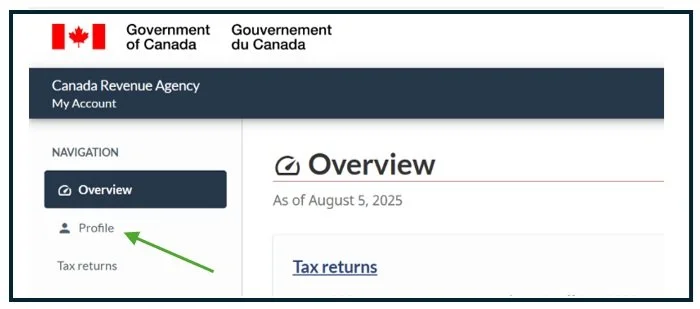
Step 2: Select ‘Profile’ from the toolbar on the upper left hand side of the screen:
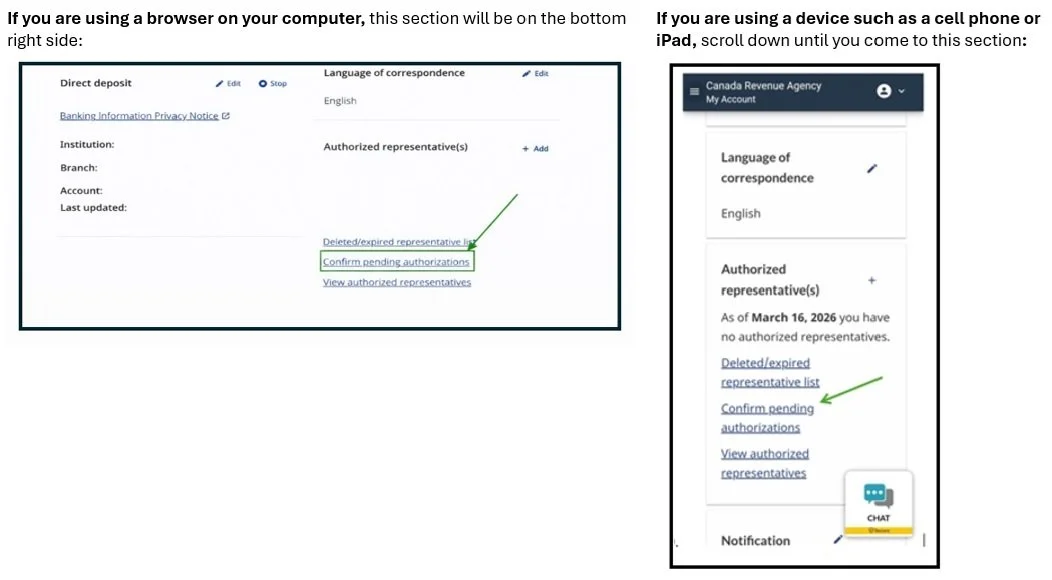
Step 3: Scroll down to the ‘Authorized representative(s)’ section of your Profile and select ‘Confirm pending authorizations’:
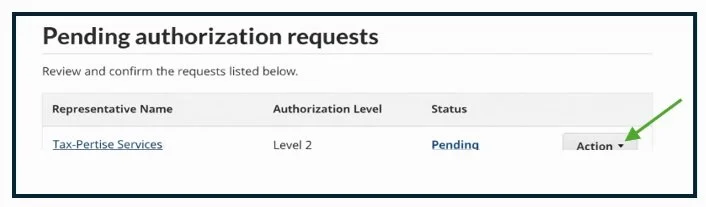
Step 4: Confirm/Accept the Pending Authorization request:
If you are using a browser on your computer, click on the ‘Action’ drop down menu for ‘Tax-Pertise Services’. Choose ‘Confirm/Accept’:
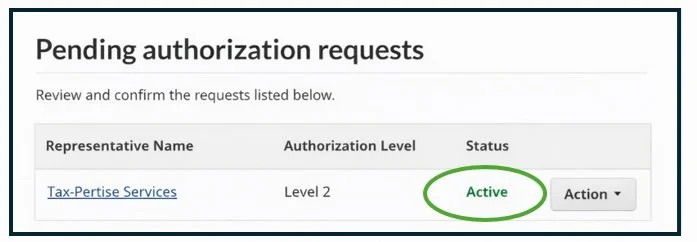
Once complete, the status will change from ‘Pending’ to ‘Active’:
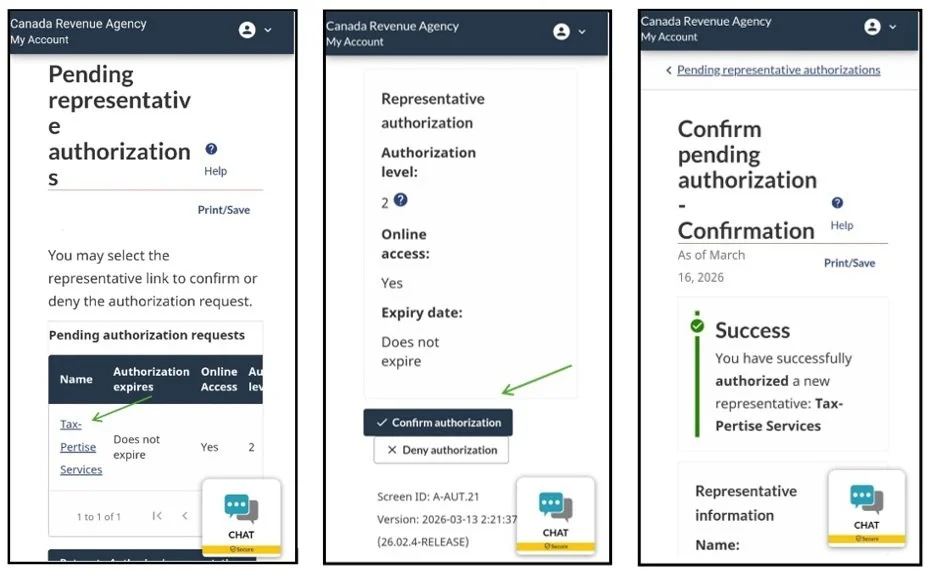
If you are using a device such as a cell phone or iPad, select ‘Tax-Pertise Services’ and ‘Confirm authorization’. Once complete, you should receive a message confirming success:
Step 5: Call or email Tax-Pertise to communicate that you’ve completed this approval so your file can be added to our queue. Call 905-319-6363 (option 3 at the auto attendant) or email: info@taxpertise.ca